Getting Started
Welcome to YouTube Dubbing
Follow this short guide step by step. In just a few minutes, you’ll be ready to watch videos in a language you understand.
Step 1 / 7
Welcome
What does YouTube Dubbing do?
YouTube Dubbing is a browser extension that translates a video and reads it aloud in your language. Open a foreign-language video and start dubbing with one click instead of trying to follow every subtitle.
- Works on YouTube, Udemy, Bilibili, and more than 190 other sites
- Supports 138 languages and a range of AI voices
- Core features are free to use
Each step in this guide is quick. Complete it, then select “Next”.
Pin the icon
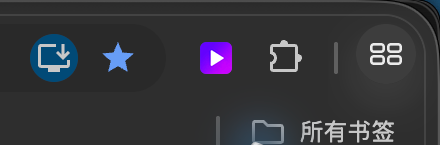
Pin the extension icon in three steps
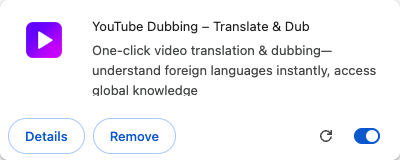
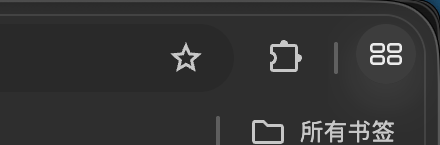
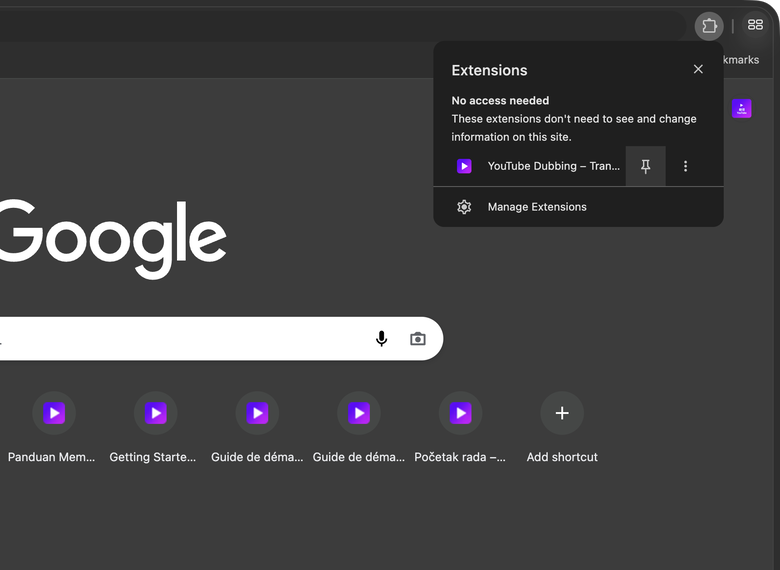
Follow the three real browser screenshots on the right to pin YouTube Dubbing to your browser toolbar.
- Select the puzzle-piece icon on the browser toolbar to open the Extensions menu
- Find “YouTube Dubbing”, then select the pin icon on the right
- When the purple extension icon appears on the toolbar, it’s pinned and ready
Once pinned, the icon stays visible in the top-right corner of your browser. You’ll use it to open settings and start dubbing.
Core settings
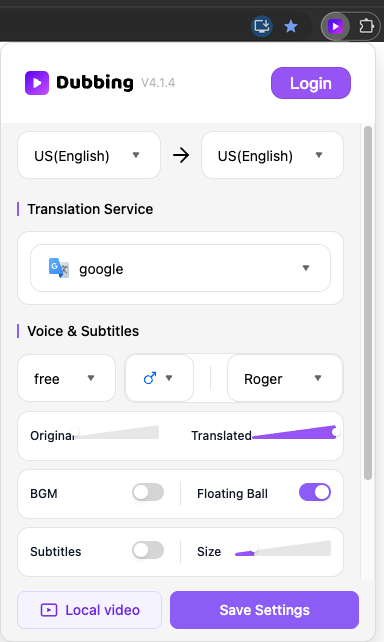
Open the extension’s core settings
Select the extension icon you just pinned to open the panel. This is the main settings hub for the features you’ll use while watching videos.
- Switch the Voice and AI model, turn subtitles on or off, and adjust Target Language, volume, background audio, and other commonly used options.
Choose what works for you, then select Save Settings at the bottom. You can return and change these options at any time.
Log in
Log in to your account
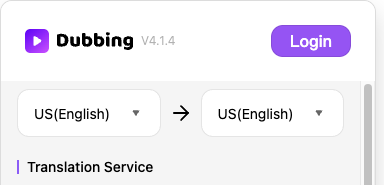
Select Login at the top of the popup. The account page opens, where you can create an account with your email address or log in to an existing account.
- After logging in, you can watch 5 videos for free every day
Start dubbing
Open a video and start dubbing
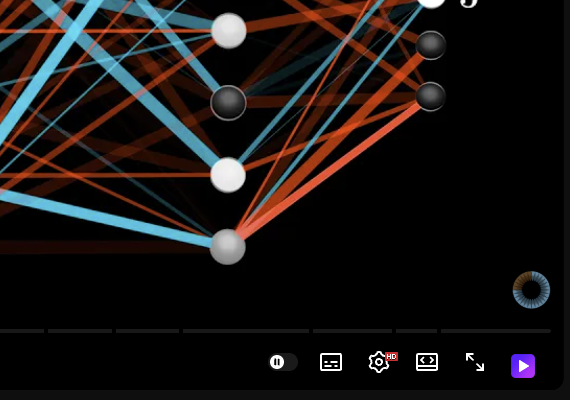
On YouTube, open a video and find the extension’s “D” button on the player. Select it to start translating and dubbing.
- Green button: AI-optimized subtitles for the best experience
- Yellow button: creator-uploaded subtitles, which are usually good quality
- Red button: subtitles automatically recognized by the platform’s ASR
- Rainbow button: your own subtitle version, edited and saved with the subtitle editor
The first playback may take a few seconds to prepare. That is normal.
Video tools
Floating Ball: summaries and subtitle editing
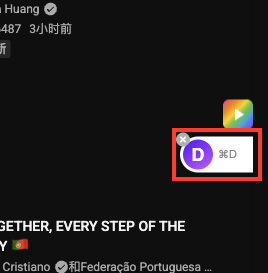
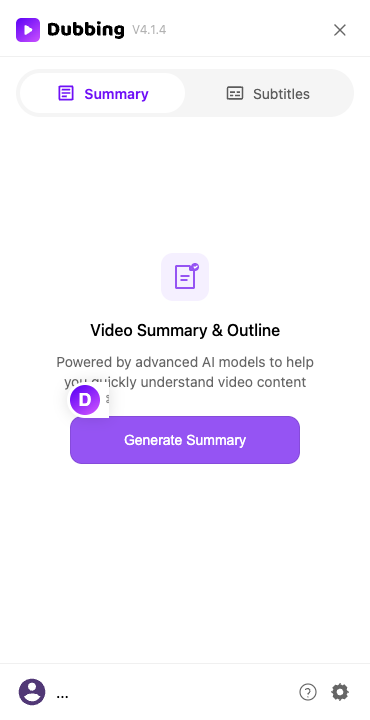
After you enable Floating Ball, a floating D button appears on the right side of the video page. Select it to open the side panel.
- In the extension popup, turn on Floating Ball
- On a video page, select the floating D button on the right to open the side panel
- Under Summary, use Generate Summary on the Video Summary & Outline screen; under Subtitles, edit and save as My Subtitles for translation and dubbing

More settings
Explore more settings
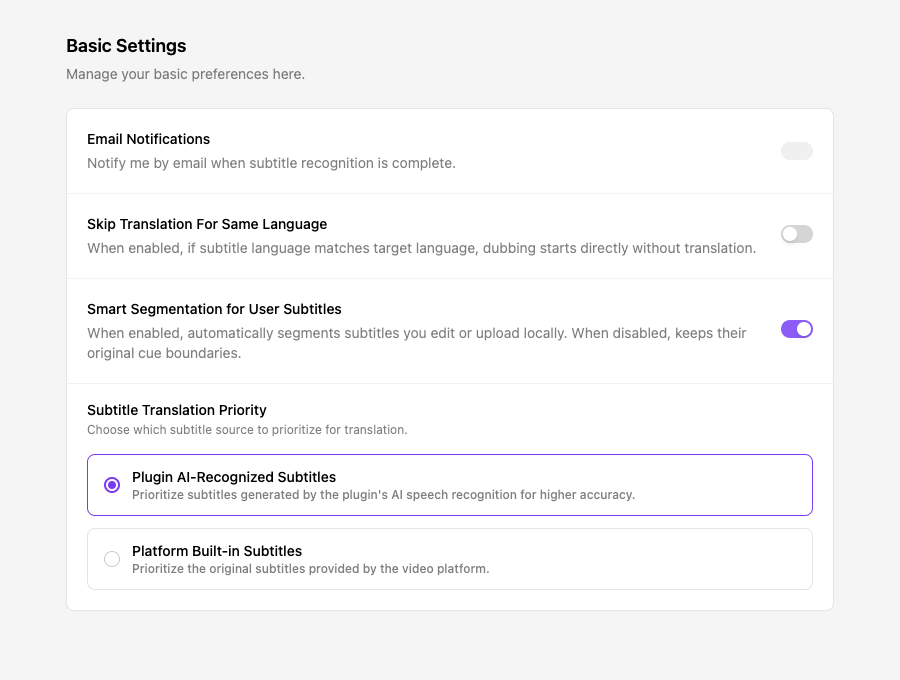
Select the small gear at the bottom-right of the side panel to open the Options page. It opens on Basic Settings, as shown here.
- Basic Settings: manage general extension behavior and subtitle preferences
- Glossary: define preferred translations for names and specialized terms
- Pronunciation settings: control how selected words and names are spoken
That’s it. You now know everything you need to get started!
You’re all set!
Open a video and try one-click dubbing now.