iOS Plugin Installation & Usage
Installation
Search for “VidTransDub” in the Apple App Store and install the application.
Setup
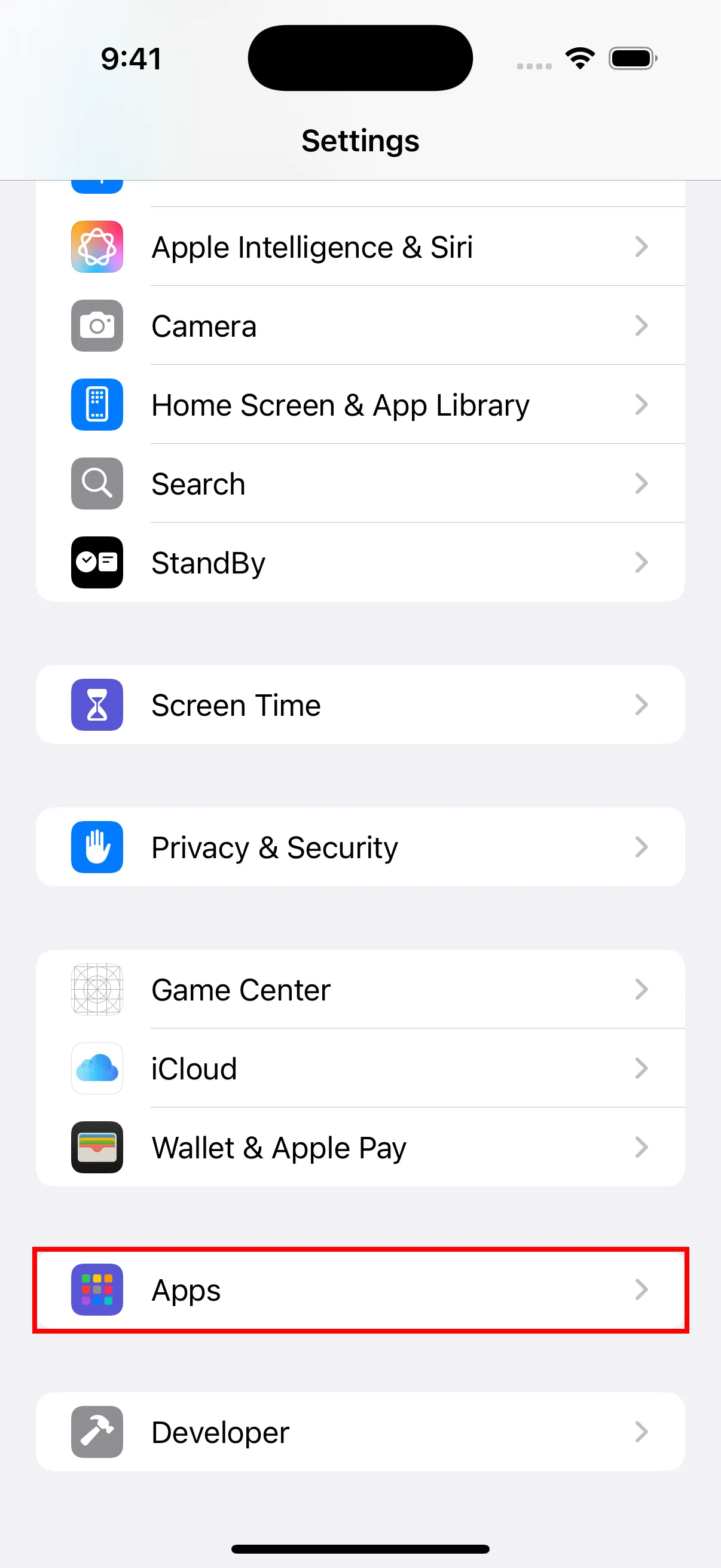
- Open the “Settings” app on your iPhone, scroll down to find “Apps” and tap to enter.
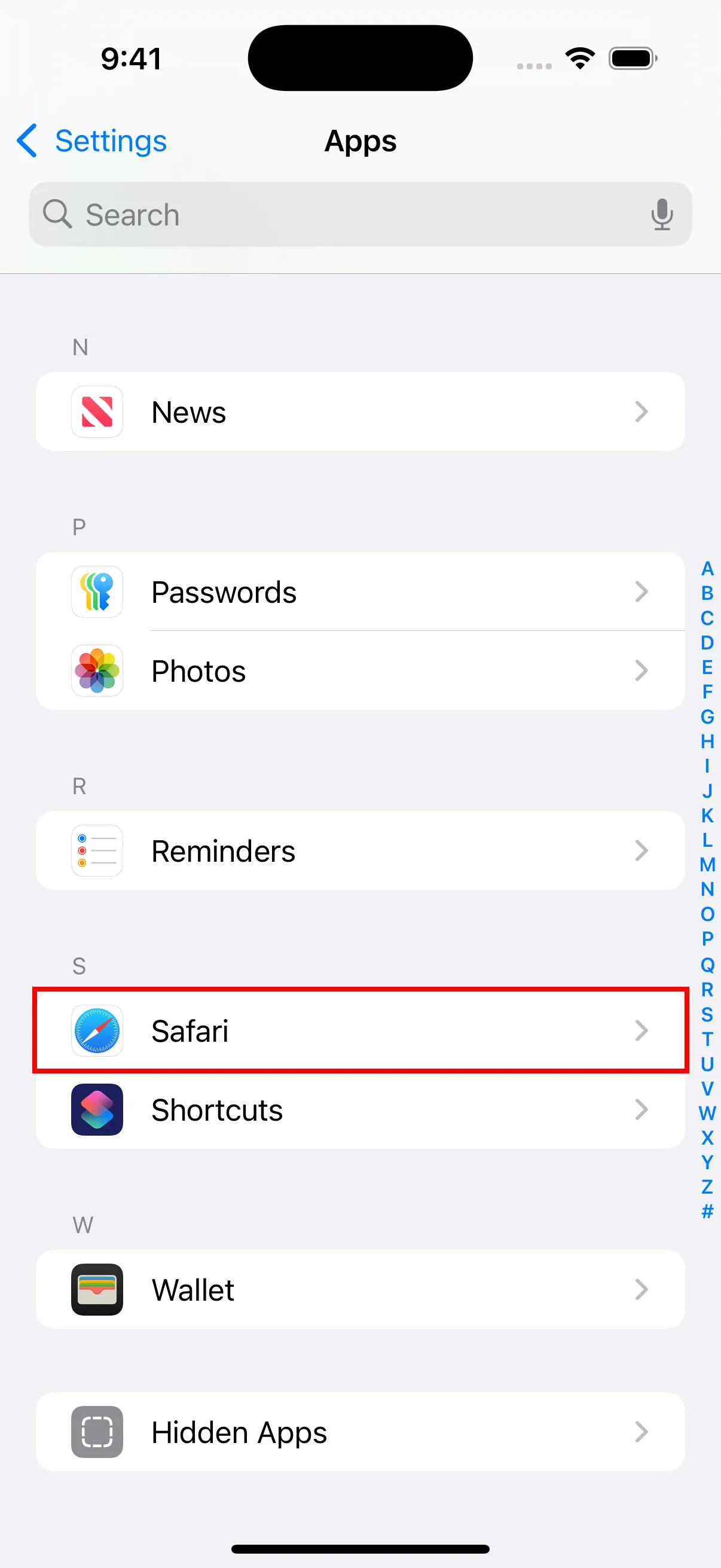
- Find and tap “Safari” in the Apps list.
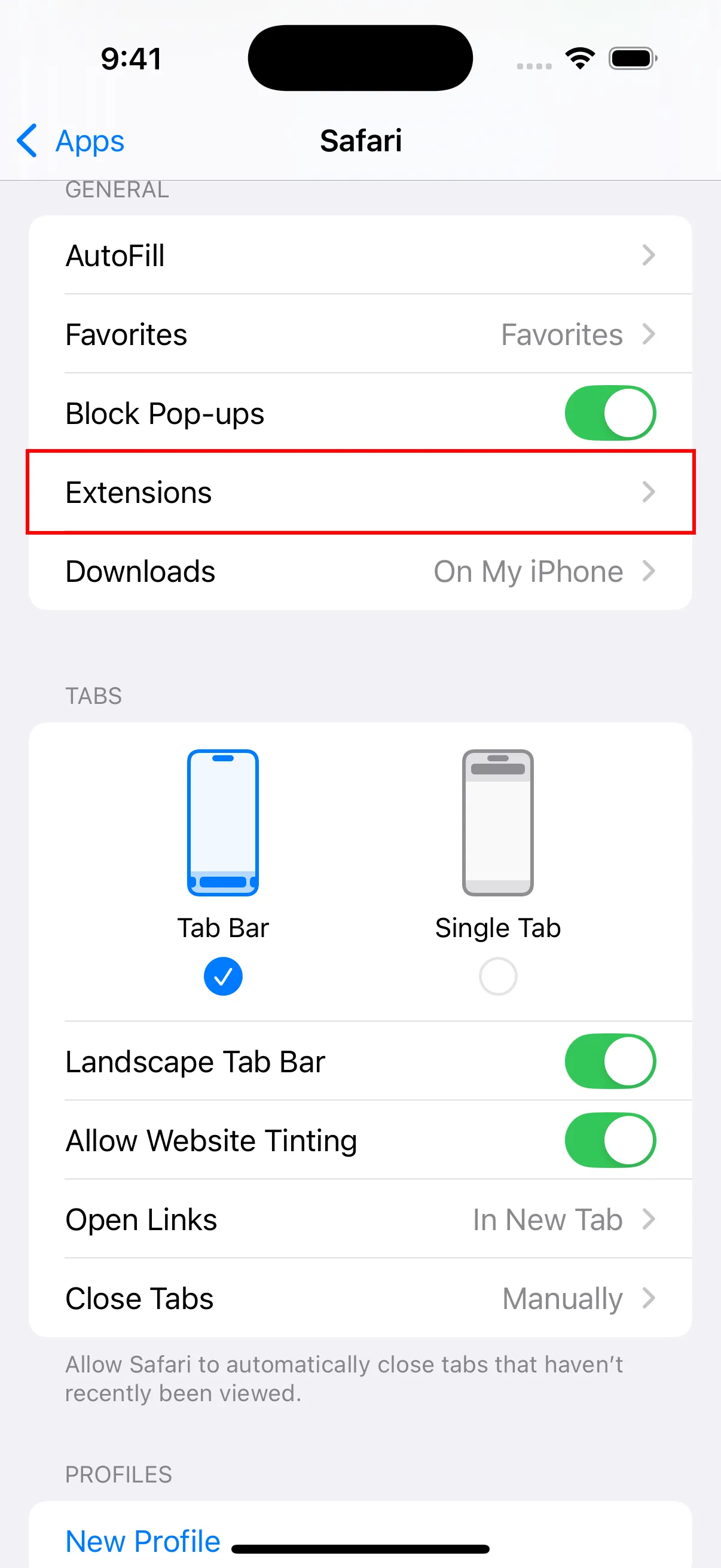
- In Safari settings, make sure “Block Pop-ups” is enabled. Also note the “Extensions” option — you’ll need to enable extensions here after installing the plugin.
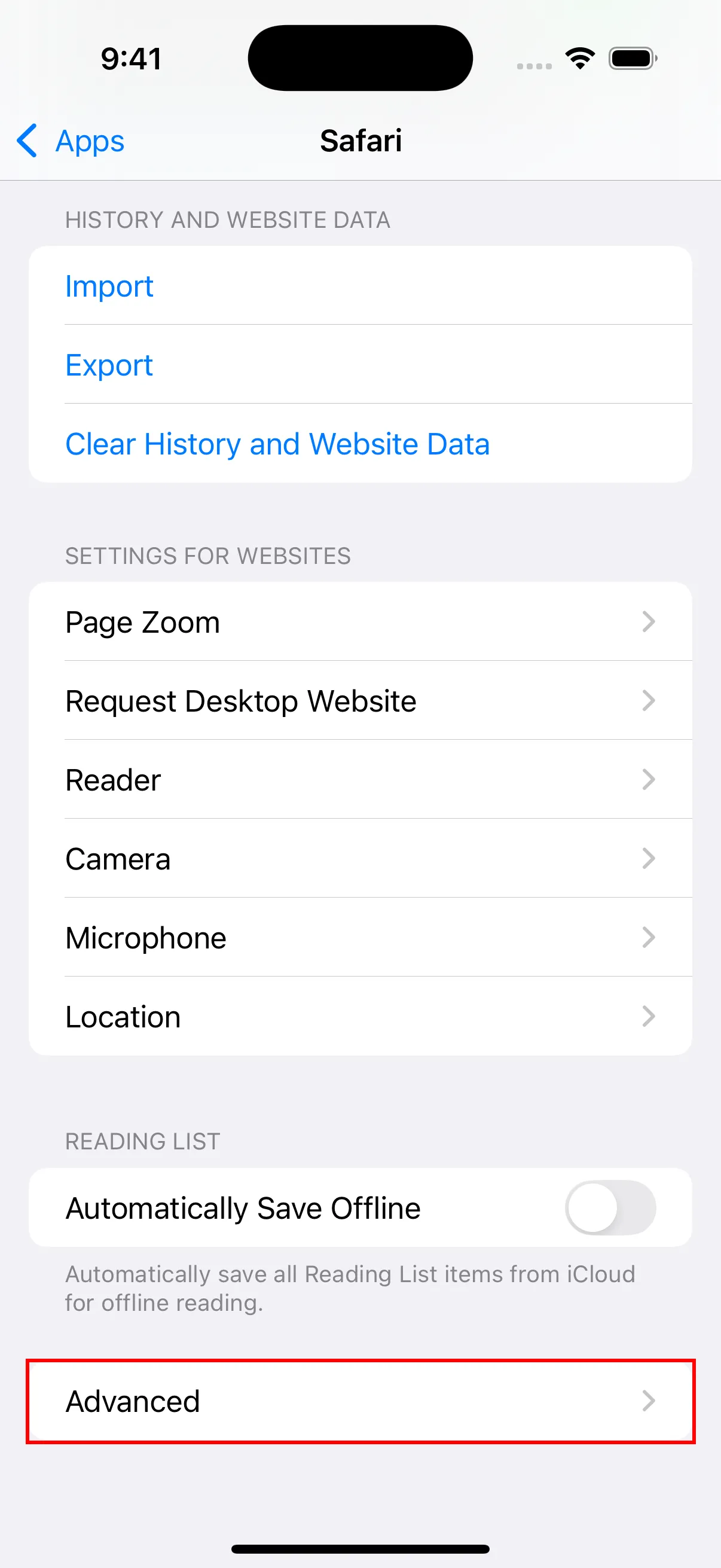
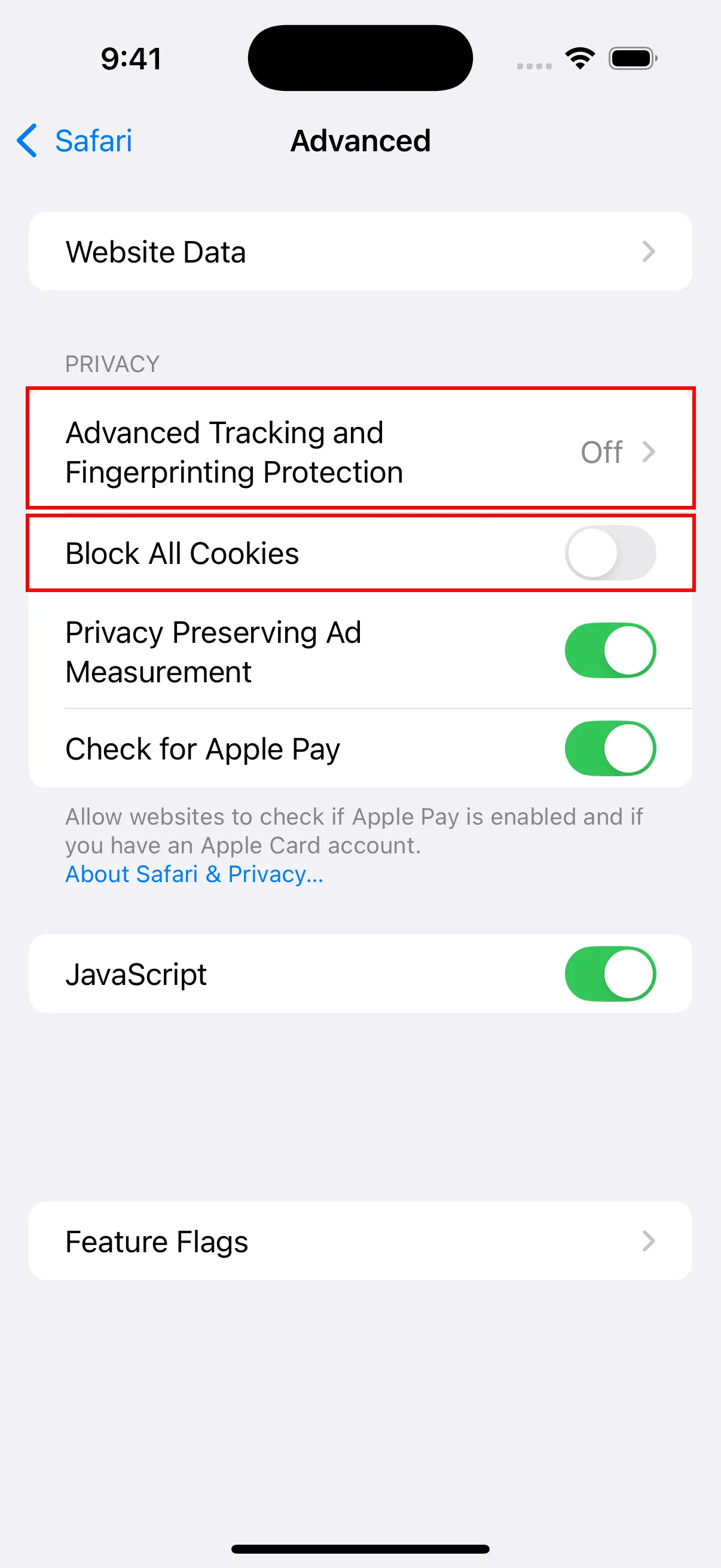
- Scroll down to the bottom and tap “Advanced” to enter advanced settings.
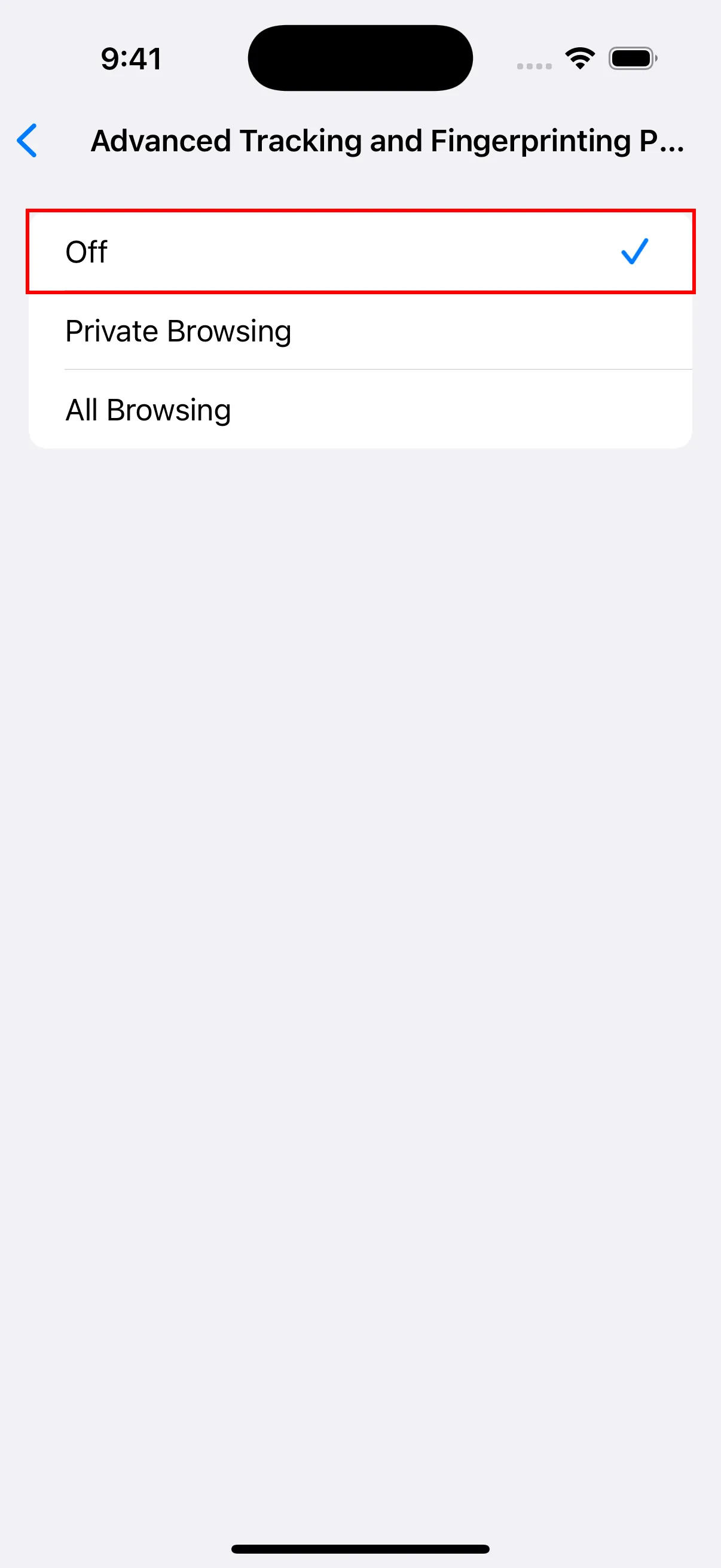
- In Advanced settings, tap “Advanced Tracking and Fingerprinting Protection” and set it to Off. Also make sure “Block All Cookies” is turned off.
- Go back to Safari settings, tap “Extensions.”
- Tap “YouTube Dubbing.”
- Turn on the “Allow Extension” option.
- Under “Website Permissions,” make sure to select “Allow.”
Usage
- Open the Safari browser.
- Locate and click on the plugin icon.
- Click the login link to open the login page and log in.
- Once logged in successfully, you can visit YouTube and use the plugin to play videos.
Differences Between the iOS Version and the PC Version
To bypass the Apple App Store’s restrictions on in-app purchases for extension plugins, I have hidden all content related to paid services. To use the AI translation model and Azure TTS, you need to recharge on the PC version first, and then use it on iOS. For non-members, only free voice types and Google Translate will be displayed. Additionally, to view remaining membership time, balance, and other information, you need to check on the PC version, as this information is not available on iOS.